Fund Allocation for Subprojects
How to Allocate Funds to a Subproject?
View Allocation Distribution from Main Project Page
Mark Subproject as Completed- No Fund Allocation
Mark Subproject as Completed- With Fund Allocation
Subproject Completed with Same Cost as Fund
Subproject Complete with Surplus Transfer
Subproject with Insufficient Funds
De-allocate Funds on Subproject Deletion or Privacy Change
Mark a Subproject as Private (Visibility Inheritance)
Funds are allocated to individual Subprojects from the main project's available budget.
How to Allocate Funds to a Subproject?
-
Go to the Subproject information page.
-
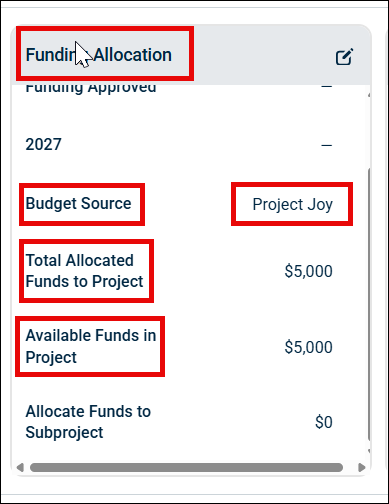
Navigate to the Funding Allocation section.
-
You will see the main project name in the Budget Source.
-
Total Allocated Funds to Project and Available Funds in Project also shows the total funds and remaining unallocated funds at project level respectively.
-
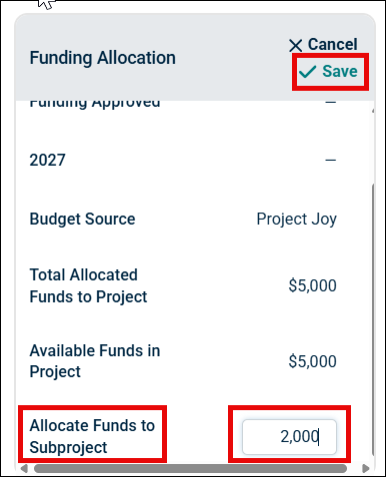
Click the Edit icon on the Funding Allocation section.
-
Enter the amount in the given field for Allocate Funds to Subproject.
NOTE Allocated Funds to the Subproject cannot exceed the Available Funds in the main project. It throws an error saying, "Allocation of Funds should not be greater than Available Funds in Project.”
-
Click Save.
Things to Remember:
-
Funds to the Subprojects can only be allocated from the main project's existing allocated funds. No additional budget from outside the main project can be assigned to a Subproject independently.
-
Allocation is only available for Public projects. If the main project is Private, the Funding Allocation section is not visible, and fund allocation is not applicable.
-
Fund allocation can be edited even after the Subproject or main project is in Committed status.
View / Edit Allocated Funds
Once funds are allocated to a Subproject, you can view a consolidated summary from the main Project Information Page.
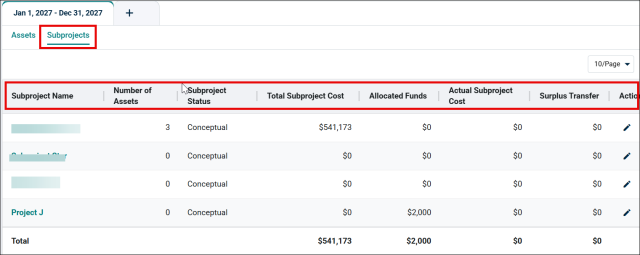
However, the allocated funds can be edited only through the Subproject Information Page.
-
Open the Subproject Information page.
-
Navigate to the Funding Allocation section.
-
Click the Edit icon on the tab.
-
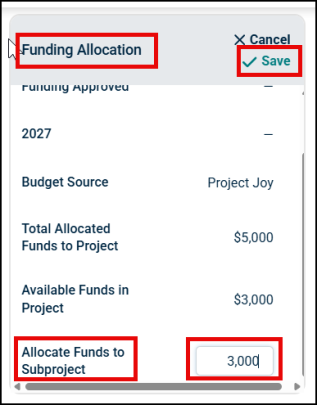
Make changes to the allocated amount as required.
-
Click Save, the change also gets reflected immediately in the main project’s available funds.
View Allocation Distribution from Main Project Page
-
Open the main Project Information Page.
-
Navigate to the Allocation Distribution section.
-
You will see the details like Total Allocated Funds at Project Level, Available Funds at Project Level and Funds allocated to each Subproject individually.
Things to Remember:
-
The Allocation Distribution section on the Project Information Page is hidden if the project is set to Private.
-
Only Subprojects that have funds allocated to them are shown in the Allocation Distribution section. Subprojects with $0 allocation are not displayed.
-
If no allocation exists anywhere, the section displays $0 for all fields.
Mark Subproject as Committed
The project is marked Committed as soon as the work begins to indicate that the the scope is locked and the project is active. This prevents further asset changes and cost edits.
-
Open the Subproject Information Page.
-
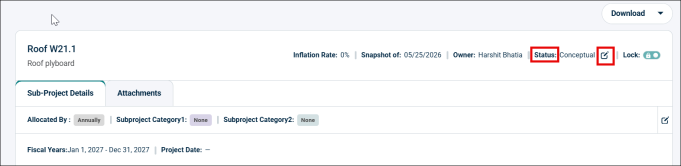
Click the Edit icon next to Status.
-
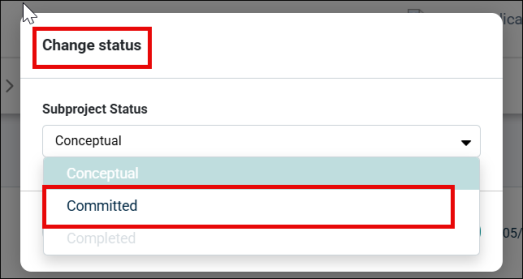
A new pop-up opens, change the status from Conceptual to Committed.
-
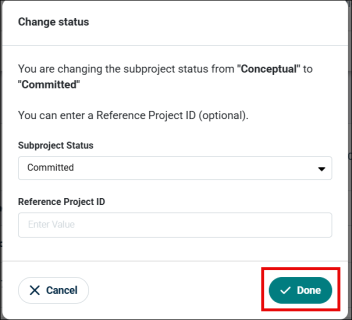
Click Done to confirm the change. You can enter the Reference Project ID(optional).
Things to Remember:
-
The Status moved forward only. A Subproject can only advance (Conceptual → Committed → Completed). It cannot be reverted from Committed back to Conceptual.
-
Subprojects can be marked as Committed even if the parent project is still in Conceptual status.
-
Once a Subproject is Committed: adding, removing, or moving assets is not allowed; asset cost edits at the Subproject level are locked (read-only).
-
The main project can only be marked as Committed after all its Subprojects are Committed. If any Subproject is still in Conceptual state, the main project's Committed option will be blocked with an info message: "Project can be committed only after all Subprojects are committed."
-
User must have edit access to the Subproject to change its status.
Mark Subproject as Completed- No Fund Allocation
You can directly mark a Subproject as Completed without any fund comparison or actual cost entry if the Subproject has no fund allocated.
To mark a Subproject complete,
-
Open the Subproject Information page.
NOTE Note: Make sure that the Subproject status is set to Committed.
-
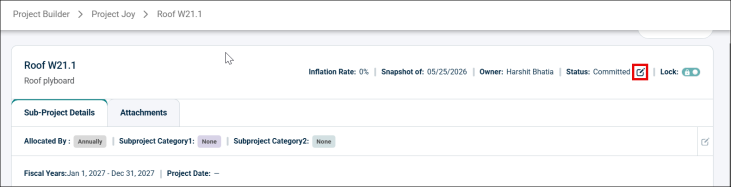
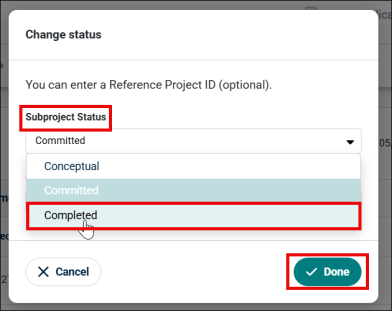
Click the Edit icon next to the status.
-
Change the status to Completed.
-
Click Done.
-
Actual Subproject cost is not required for this.
Things to Remember:
-
This flow only applies when the fund allocation is not configured for the Subproject.
-
Once the Subproject is marked complete, it becomes read-only.
-
The main project cannot be marked complete until all Subprojects are completed.
Mark Subproject as Completed- With Fund Allocation
To mark a project that has funds allocated to it, the completion dialog box prompts you to add Actual Subproject Cost and handle surplus or insufficient fund scenarios.
-
Open the Subproject Information Page.
-
Make sure the Subproject is in Committed status.
-
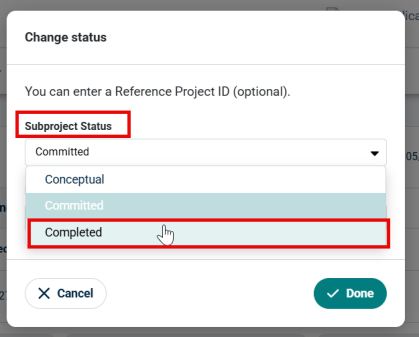
Click the Edit icon next to the status.
-
Select Completed in the Subproject Status dropdown.
-
Enter the Actual Subproject cost in the field and click Done.
Here, you may face three different scenarios for Actual Subproject cost:
Subproject Completed with Same Cost as Fund
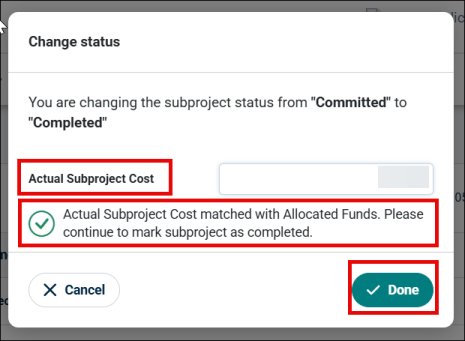
When a Subproject gets completed and the actual cost is equal to the allocated finds, then you can directly mark it as Complete by entering the actual cost of the Subproject.
-
A message saying, “Actual Subproject Cost matched with Allocated Funds. Please continue to mark subproject as complete” displays on the pop-up.
-
You can click Done to mark the Subproject Complete.
-
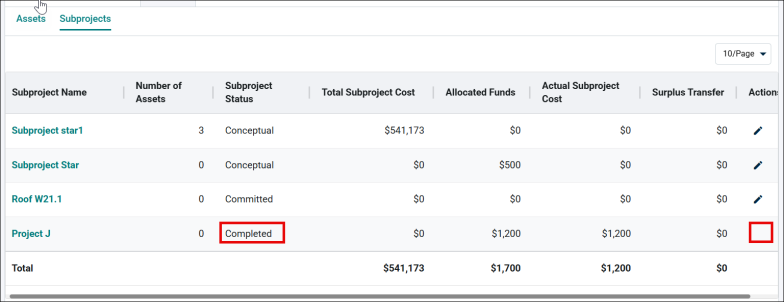
The Subproject gets marked Completed and the information page becomes read-only. The edit icon in front of the Subproject name on the Project page also gets removed.
Subproject Complete with Surplus Transfer
For a Subproject if the actual cost is less than the allocated funds, the surplus amount is automatically returned to the main project's available funds when it is marked completed. This ensures unused budget is not lost and can be reallocated elsewhere.
-
When you enter the Actual Subproject Cost in the given field, the system compares it with the allocated funds.
-
If the allocated funds is more than the actual Subproject cost, the system calculated the surplus (Allocated Funds − Actual Cost = Surplus), which is then transferred back to the main project.
-
It also displays a message saying, “Allocated Funds exceeds the required amount. Surplus amount XXX will be transferred to the Main project upon subproject completion.”
-
Click Done to complete.
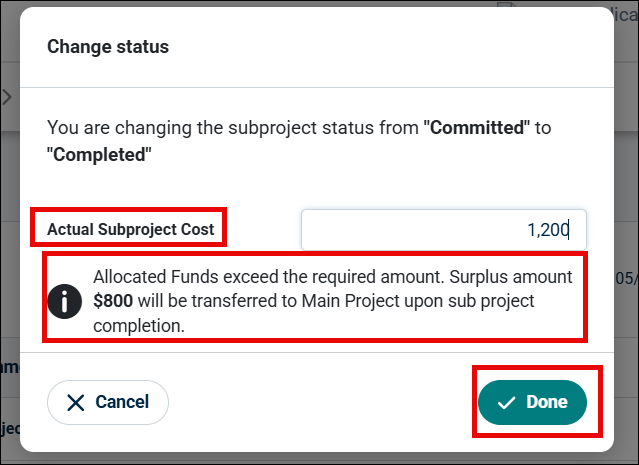
Once you mark the Subproject complete, the extra funds get transferred to the main project's available funds and the available funds gets is updated immediately after the surplus transfer.
Subproject with Insufficient Funds
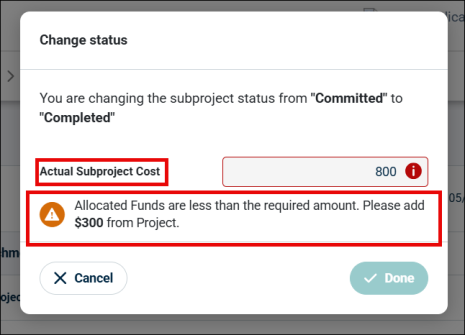
For a Subproject if the actual cost is greater than the allocated funds, the system blocks completion and requires the user to either add more funds or adjust the actual cost. This prevents projects from being closed with unresolved budget deficits.
-
When you enter the Actual Subproject Cost in the given field, the system compares it with the allocated funds.
-
If Actual Cost of the subproject is more than the Allocated Funds, the system displays an error message saying, "Allocated Funds are less than the required amount. Please add XXX from the Project.”
-
The system then blocks the Subproject completion, and the user needs to either increase the Allocated Funds from the main project's available budget or reduce the Actual Subproject Cost entry to match or fall within the allocation.
-
Once the insufficient funds issue is resolved, the user can proceed to mark the Subproject as Complete.
Funds Freeze
When any Subproject is allocated funds from the main project, those funds get frozen. This means that those funds cannot be allocated to any other Subproject or used for any other Subproject unless they are released. It prevents the double allocation of the same budget.
De-allocate Funds on Subproject Deletion or Privacy Change
Funds get automatically de-allocated and returned to the main project in three specific scenarios: when a Subproject is deleted, when the main project is changed to Private, or when all assets are removed from a Subproject.
When a Subproject is Deleted
-
When a Subproject is deleted, all its allocated funds are automatically released back to the main project's available funds.
-
The frozen amounts per year are recalculated and can be reallocate up to the newly available amount.
When Main Project Changed from Public to Private
-
When the main project's visibility is changed from Public to Private: all fund allocations across all Subprojects are released.
-
Funding Allocation section disappears from all Subproject pages; main project fund allocations are also released.
All Assets Removed from Subproject
-
When all assets are removed from a Subproject: the allocated funds for that Subproject are automatically returned to the main project's available funds.
-
The Subproject itself remains (it is not deleted), but its funding allocation is cleared.
Mark a Subproject as Private (Visibility Inheritance)
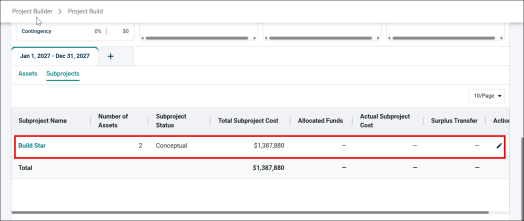
Subprojects cannot independently control their visibility. They inherit the Public or Private setting from the main project. Users cannot mark a Subproject as Public or Private independently.
-
If the main project is Public: all Subprojects are Public. Fund allocation, Funding Allocation sections, and Allocation Distribution are visible.
-
If the main project is Private (or is changed to Private): all Subprojects are automatically marked as Private by the system; fund allocation is not applicable, the Funding Allocation section is hidden on Subproject pages.
Things to Remember:
-
There is no setting or button on the Subproject Information Page to change visibility.
-
When the main project is changed from Public to Private, all Subproject fund allocations are automatically de-allocated.
